
PC TROUBLESHOOTING & OPTIMIZATION
How to Fix Roblox Lag & Stutter on PC (FPS & Ping Guide)
Step-by-step guide to fixing Roblox lag, stuttering, and frame drops on Windows PC. Learn how to diagnose network ping vs rendering lag, clear cache, and optimize client settings.
Quick Fix Checklist (BLUF): Press Shift + F5 to diagnose whether your issue is high Ping (network) or low FPS (rendering). For low FPS: switch Roblox Graphics to Manual (Level 3–5), enable Fullscreen (F11), and close memory-hungry web browsers. For high Ping: connect via Ethernet and choose server regions closest to your physical location.
DIAGNOSTICS FIRST
Step 1: Identify What Is Actually Lagging
“Lag” is commonly used to describe two completely different technical issues. Applying the wrong fix will not solve your problem:
- Rendering Lag (Low FPS): The game feels choppy, like a slideshow, and camera movement is sluggish. Caused by graphical overload, background programs, or high resolution.
- Network Latency (High Ping): Your frame rate is smooth (60+ FPS), but other players rubberband, doors take seconds to open, or your hits don't register. Caused by poor Wi-Fi or distant servers.
Press Shift + F5 inside Roblox to bring up the official telemetry overlay. If your Ping is above 120 ms, focus on Step 5. If your FPS is dipping below 45, proceed with Steps 2 through 4.
CLIENT CONFIGURATION
Step 2: Optimal In-Game Graphics Settings
Roblox's “Automatic” graphics mode often over-estimates system stability during chaotic moments (such as boss explosions):
- Press Esc to open the in-game settings menu.
- Under Settings, change Graphics Mode from “Automatic” to Manual.
- Set Graphics Quality to Level 3 to 5. Levels 1–2 disable critical rendering distances (making players invisible in shooters), while levels 8–10 apply heavy volumetric lighting that causes micro-stutters.
- Press F11 to engage true Fullscreen Mode, which grants the Roblox client dedicated Windows display priority.
CLEAN UP
Step 3: Clear Corrupted Roblox Cache
Corrupted texture packages cause noticeable hitching every time new models stream into view. Clearing this data forces Roblox to download fresh, uncorrupted files:
- Completely close Roblox and all related processes.
- Press Win + R, type
%localappdata%\Roblox, and hit Enter. - Open the Downloads folder and delete all files inside. (These are cached audio, textures, and asset bundles).
- Restart Roblox and join your experience.
RESOURCE RECOVERY
Step 4: Close Heavy Web Browsers While Playing
Leaving Google Chrome, Edge, or Discord streaming open with multiple tabs eats significant RAM and triggers Windows background CPU throttling.
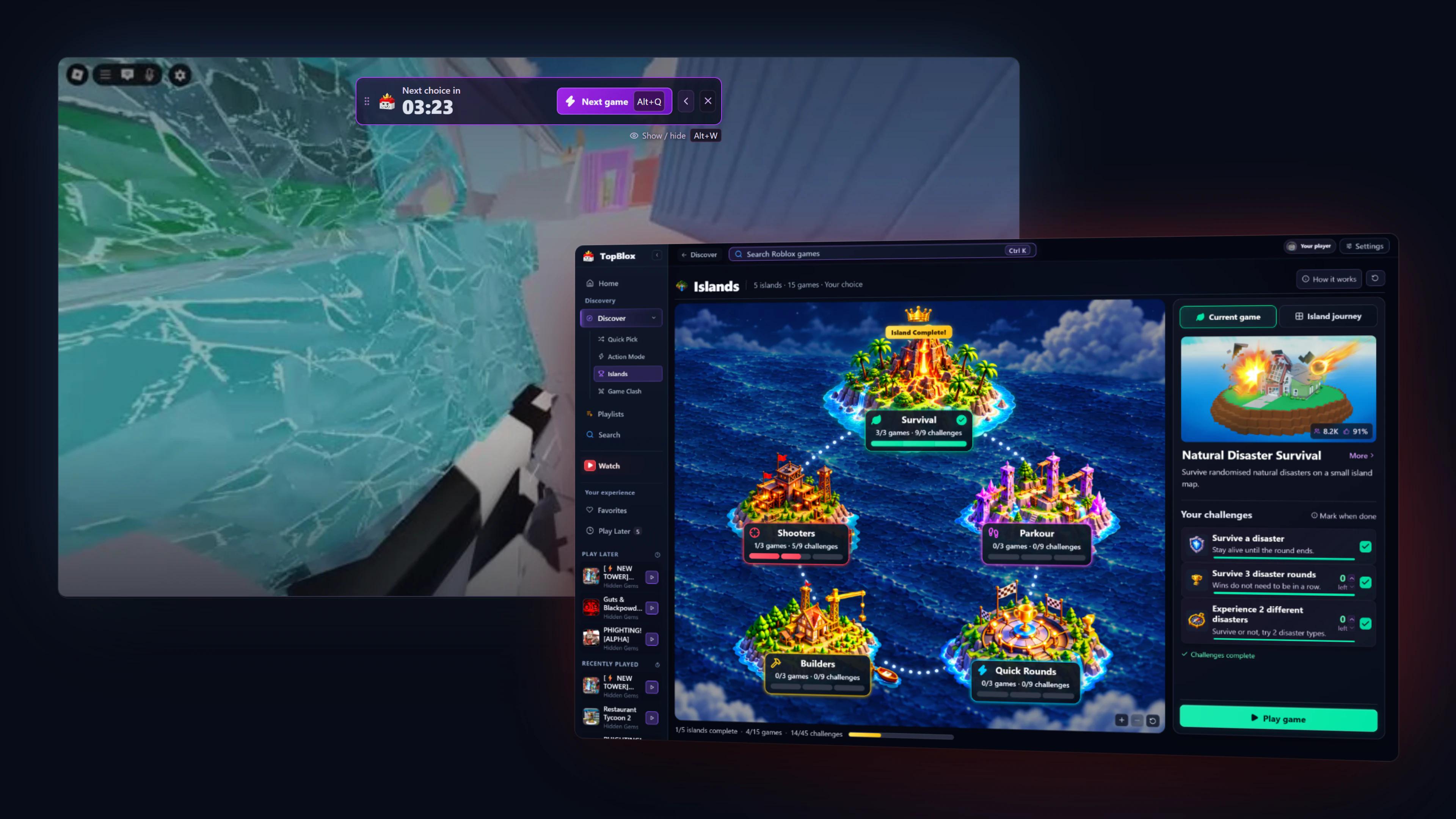
By utilizing a lightweight desktop launcher like TopBlox, you can search, discover, and launch Roblox experiences directly from a native Windows application without ever opening a web browser. Once in-game, your system commits its full resources to maintaining a rock-solid 60 FPS.
LATENCY OPTIMIZATION
Step 5: Network & DNS Stabilization
If your ping fluctuates wildly or spikes into thousands of milliseconds:
- Switch to Ethernet: Wi-Fi signals suffer from packet drops whenever household devices stream video or update apps. A wired Ethernet connection immediately cuts packet jitter.
- Flush Windows DNS: Open Command Prompt as Administrator, type
ipconfig /flushdns, and press Enter to clear stale server routing entries.
Useful answers