Keep an Action countdown or your Islands tasks in view while playing. Use compact controls for the current mode, and keep discovery and saved games in the desktop companion.
The TopBlox Roblox overlay provides an Action timer and a manual Islands checklist. It requires the Windows app, Roblox and an enabled Overwolf overlay. Game confirmation controls when a session becomes active; you remain responsible for marking Islands challenge progress.
SEE THE TWO MODE WIDGETS
Useful information for the game you are playing
These examples show the actual TopBlox interface rendered for QA. They illustrate the widgets and their controls; the examples do not represent a live session or a native Windows overlay test.
Action timer
See the next-choice countdown, use Next game when available, and drag or collapse the widget to suit the current view.
Actual TopBlox UI rendered for QA with example state; not a native in-game Windows capture. Ctrl+Alt+N is the configured example shortcut, not a universal default.
Islands checklist
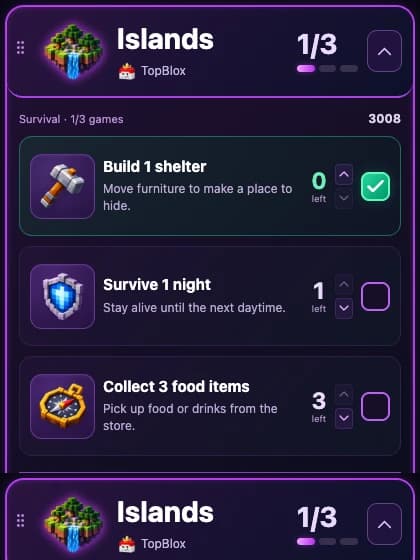
Read the current game tasks, mark achievements manually and adjust counters. Collapse the view when you want less information on screen.
Actual TopBlox UI rendered for QA with example state, showing expanded and compact views; not a native in-game Windows capture. The 3008 session and task values are examples. Challenge completion remains manual.
Game confirmation comes before active controls
Action: count time in the confirmed game
Start the mode from the desktop app. The countdown advances only when the session is playing, Roblox is focused and the intended game is confirmed. Joining or losing focus can leave the timer waiting or paused.
When the mode offers a choice, use Next game to request the next selection, or Keep playing to stay in the game and end Action mode. The timer does not prove a launch finished just because a request was accepted.
Islands: play, then check off the tasks
Choose an Islands game from the desktop journey. The checklist becomes actionable after the intended experience is confirmed. Mark tasks or adjust progress counters yourself as you complete them.
Use the relevant Next, Skip or retry control for an explicit selection. Completing a task in Roblox does not automatically tick the checklist; the saved challenge progress reflects your manual actions.
Explicit Action and Islands selections use the same guarded Roblox handoff described in the launcher feature. Duplicate and overlapping launches remain guarded, and an HTTPS browser fallback can be used if the native route is unavailable.
SET UP THE WINDOWS COMPANION
Enable Roblox overlay support and check your hotkeys
Install TopBlox through Overwolf and make sure the Roblox desktop client can open an experience. See the setup guide for prerequisites.
Open Overwolf Settings, go to Overlay & Hotkeys, and ensure the Roblox overlay is enabled. TopBlox also offers setup assistance when it detects that the overlay is disabled.
Review Show/Hide TopBlox, Next game and Keep playing in TopBlox Settings. Choose bindings that fit your game controls and check the current binding shown in the app.
Start an Action or Islands session from the desktop companion, enter the intended game and wait for game confirmation before using the active widget controls.
When the Roblox overlay is disabled, game events and local tracking can also be affected. Use TopBlox support if the timer, game confirmation or Played progress does not behave as expected.
Keep the rest of discovery on your desktop
Browse playlists, the game catalog, Favorites and Play Later in the desktop app. The current in-game widgets focus on the active timer or checklist; the full catalog browser is not an overlay feature.
Use the configured Show/Hide TopBlox shortcut to minimize or restore the desktop companion while Roblox runs. The app can prefer a second monitor during play and remember its desktop monitor. The Windows companion requires Overwolf; the website previews above do not enable an overlay by themselves.
Useful answers
Roblox overlay questions
What appears over Roblox in the TopBlox overlay?
During an active supported mode, TopBlox can show an Action countdown widget or an Islands challenge checklist. The widgets include controls such as dragging, collapsing and moving to the next selection. They depend on the Windows app, Overwolf overlay setup and the current mode and game state.
Can I browse the full TopBlox catalog inside Roblox?
The current overlay features are the Action timer and Islands checklist. Use the desktop companion to browse the catalog, playlists, Favorites and Play Later. You can restore or minimize that desktop window with its configured Show/Hide TopBlox shortcut, or use another monitor.
Why is the Action timer paused or waiting?
The countdown advances only while the session is playing, Roblox is focused and the intended experience has been confirmed. A launch request alone is not confirmation. The display can show joining, paused or waiting states while those conditions are unresolved. Check setup and allow a game switch to finish.
Are Islands challenges completed automatically?
No. You mark checklist tasks complete or adjust their counters yourself. Game events confirm the intended experience before checklist actions become active; they do not verify each challenge achievement. The displayed progress reflects your manual checklist choices.
Which keyboard shortcut should I use?
Use the binding shown in your TopBlox Settings and on the relevant widget or choice. Show/Hide TopBlox, Next game and Keep playing can be configured. The Action Next selection shortcut is also used by Islands. A shortcut in an example image may differ from your current binding.
Does TopBlox guarantee no FPS impact?
No universal frame-rate guarantee or measured FPS result is published for this feature. Performance can vary with the PC, game and platform configuration. If a mode or overlay behaves unexpectedly, stop the mode and include your app, Overwolf and Windows versions when contacting support.