
Windows PC troubleshooting guide
How to Fix Roblox Freezing or Crashing on Windows PC
Troubleshoot Roblox freezing, white-screen crashes, or launch failures on Windows 10 and 11. Clear corrupted shaders, resolve Hyperion anti-cheat conflicts, and launch cleanly.
To fix Roblox freezing or crashing on Windows PC, clear corrupted AppData and Temp cache files, set your graphics preferences to High Performance, and remove conflicting third-party injectors that trip Hyperion anti-cheat. If browser protocol handoffs keep dropping, use a clean desktop companion like TopBlox for Windows to launch experiences directly without browser tab clutter.
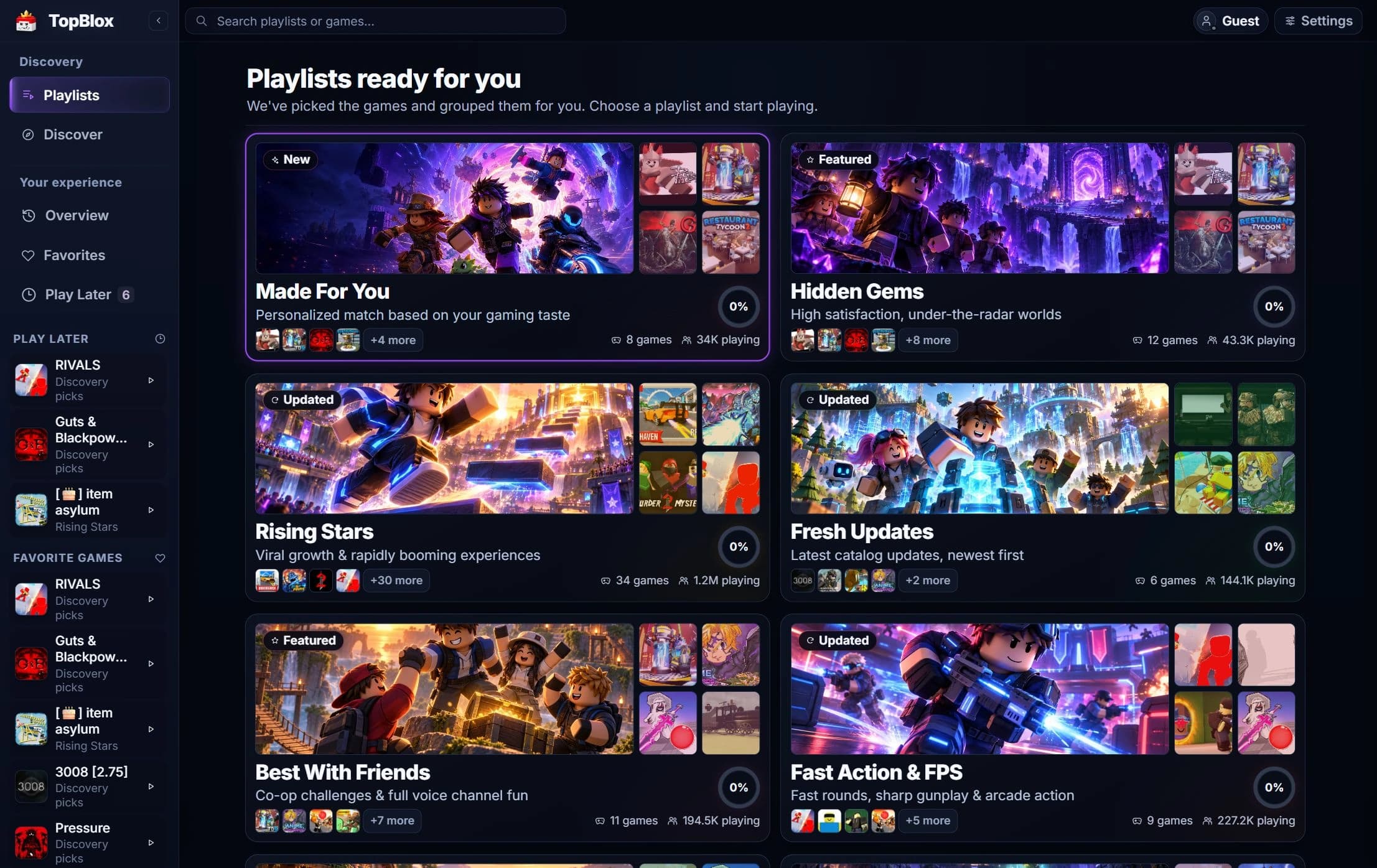
Roblox PC crash symptoms, root causes & direct solutions
Match your exact error symptom to the proven troubleshooting step below:
| Crash symptom | Primary cause | Proven fix |
|---|---|---|
| Freezes on white / red screen | Corrupted shader or texture cache | Clear AppData & Temp cache |
| Silent crash to desktop on launch | Hyperion anti-cheat detecting DLL injection | Disable third-party hooks / mods |
| FPS drops followed by freeze | Windows switching between dual GPUs | Lock to High Performance GPU |
| Browser says "Starting Roblox" but nothing opens | Browser URI protocol handler failure | Launch via TopBlox desktop app |
| Error Code 268 (Kicked by server) | Client memory integrity violation | Reinstall clean Roblox client |
| Error Code 277, 279, or 529 | Roblox server or CDN outage | Wait for server resolution |
Step 1: Clear corrupted AppData and Temp shader cache
Roblox downloads gigabytes of environment geometry, sound clips, and compiled graphics shaders into your Windows user directories. When client updates arrive, mismatched shader binaries frequently cause the client to freeze on startup or drop frames continuously.
Clear the AppData cache:
- Press Windows Key + R to open the Run dialog.
- Type
%localappdata%\Robloxand click OK. - Select and delete the Downloads, logs, and http folders. Roblox will rebuild uncorrupted versions automatically when you next launch.
Clear the Temp directory:
- Press Windows Key + R again.
- Type
%temp%\Robloxand click OK. - Select all files inside (Ctrl + A) and delete them. This purges stale compiled shader blobs that cause graphics pipeline locks.
Step 2: Assign High Performance GPU in Windows settings
Modern gaming laptops and desktop PCs with dual graphics adapters (integrated Intel UHD / AMD Radeon plus a dedicated Nvidia GeForce or AMD Radeon card) often crash when Windows dynamically switches power profiles during loading transitions.
- Open Windows Settings → System → Display → Graphics.
- Under "Custom options for apps", look for Roblox Player. If it is not listed, click Browse and locate
RobloxPlayerBeta.exein%localappdata%\Roblox\Versions. - Click Options, choose High performance (which explicitly locks the game to your dedicated GPU), and click Save.
Step 3: Resolve Byfron / Hyperion anti-cheat conflicts
Roblox uses 64-bit Hyperion (Byfron) anti-cheat on Windows. Hyperion monitors memory spaces, DLL imports, and process tampering. Any program that attempts to hook into the Roblox executable will cause the game to close silently or throw "An unexpected error occurred".
Common tools that trip Hyperion crashes:
- Outdated FastFlag editors: Third-party launcher forks modifying experimental client flags can cause crashes when Roblox deprecates internal variables. Revert to default client settings.
- Reshade & Custom Shader Injectors: Generic DirectX hooking libraries trigger instant anti-cheat protection. Uninstall any injector DLLs from the Roblox version directory.
- Unofficial FPS Unlockers: Roblox natively supports higher refresh rates in its in-game settings. Using external memory-writing unlockers is unnecessary and triggers instant crashes.
Step 4: Disable Windows Fullscreen Optimizations
Windows 10 and 11 feature an operating system layer called "Fullscreen Optimizations". While intended to reduce input lag, it frequently conflicts with Roblox's borderless windowed pipeline, leading to screen flickering and stuttering crashes.
- Right-click the Roblox Player desktop icon and select Properties.
- Switch to the Compatibility tab.
- Check the box for Disable fullscreen optimizations.
- Click Apply and then OK.
Hardware limitation note: These steps resolve local Windows configuration, display driver conflicts, and cache corruption. They cannot fix game-specific script bugs authored by individual Roblox developers or platform-wide Roblox server outages.
Recommended launch workflow
Step 5: Launch cleanly through TopBlox to eliminate browser crashes
A high percentage of Roblox "crashes" do not happen in the 3D game engine itself, but in the brittle browser-to-client handoff. Memory-heavy Chrome tabs, adblockers, and aggressive tracking blockers corrupt the custom URL protocol handshake, leaving you stuck on "Starting Roblox" or crashing during initialization.
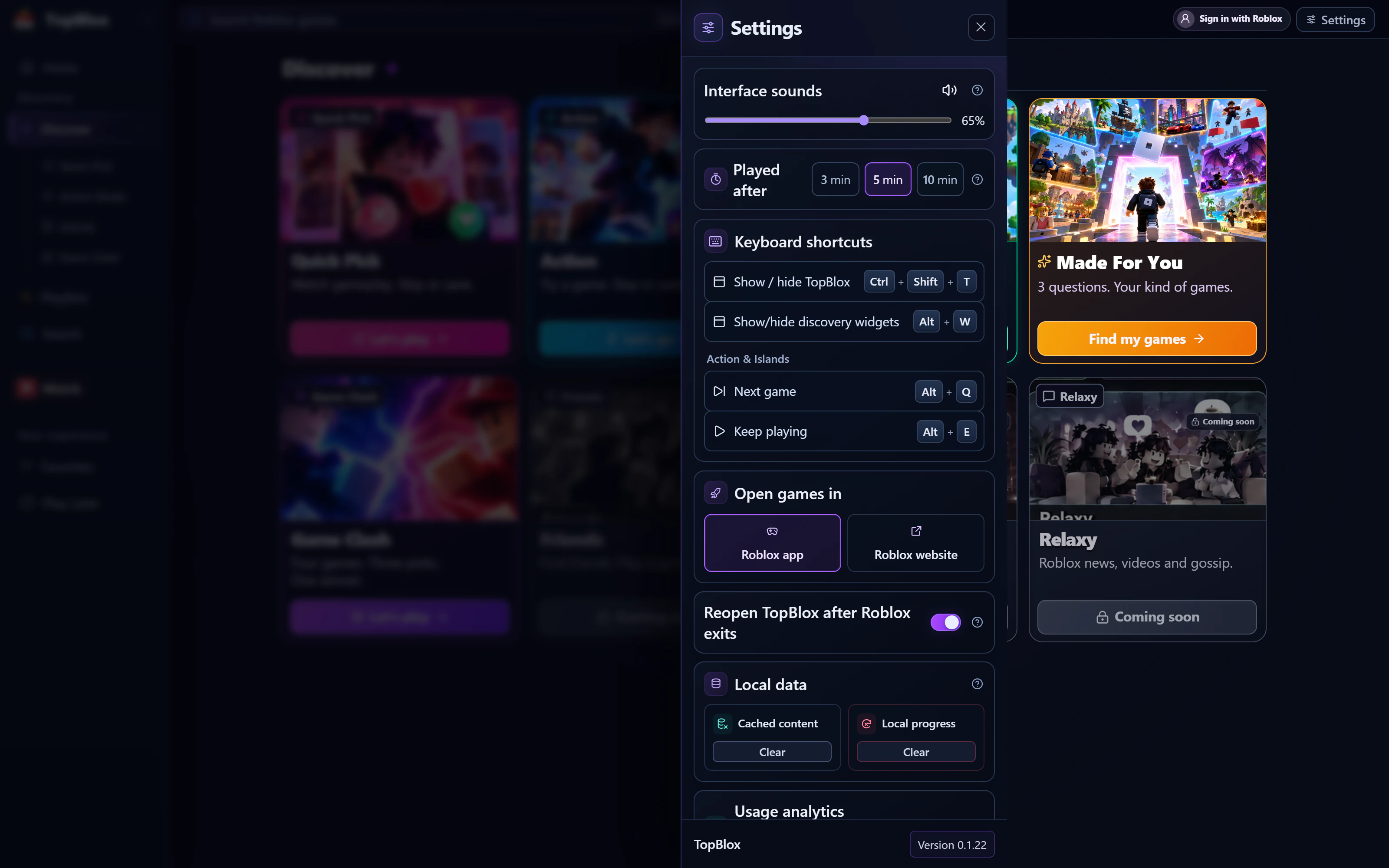
By using TopBlox for Windows, you bypass the browser entirely:
Why launch Roblox through TopBlox:
- Direct Process Execution: TopBlox launches the verified Roblox binary directly via Overwolf's whitelisted gaming architecture, eliminating browser protocol timeouts.
- RAM & CPU Conservation: Closing heavy web browsers frees up hundreds of megabytes of RAM for Roblox, preventing out-of-memory crashes on systems with 8 GB or 16 GB of RAM.
- 100% Anti-Cheat Whitelisted: TopBlox operates exclusively via official Overwolf APIs. It never modifies game memory or client binaries, ensuring zero Hyperion anti-cheat conflicts.
- In-Game Desktop Overlay: Check active sessions, switch games, and access your library via the Desktop Overlay without Alt-Tabbing.
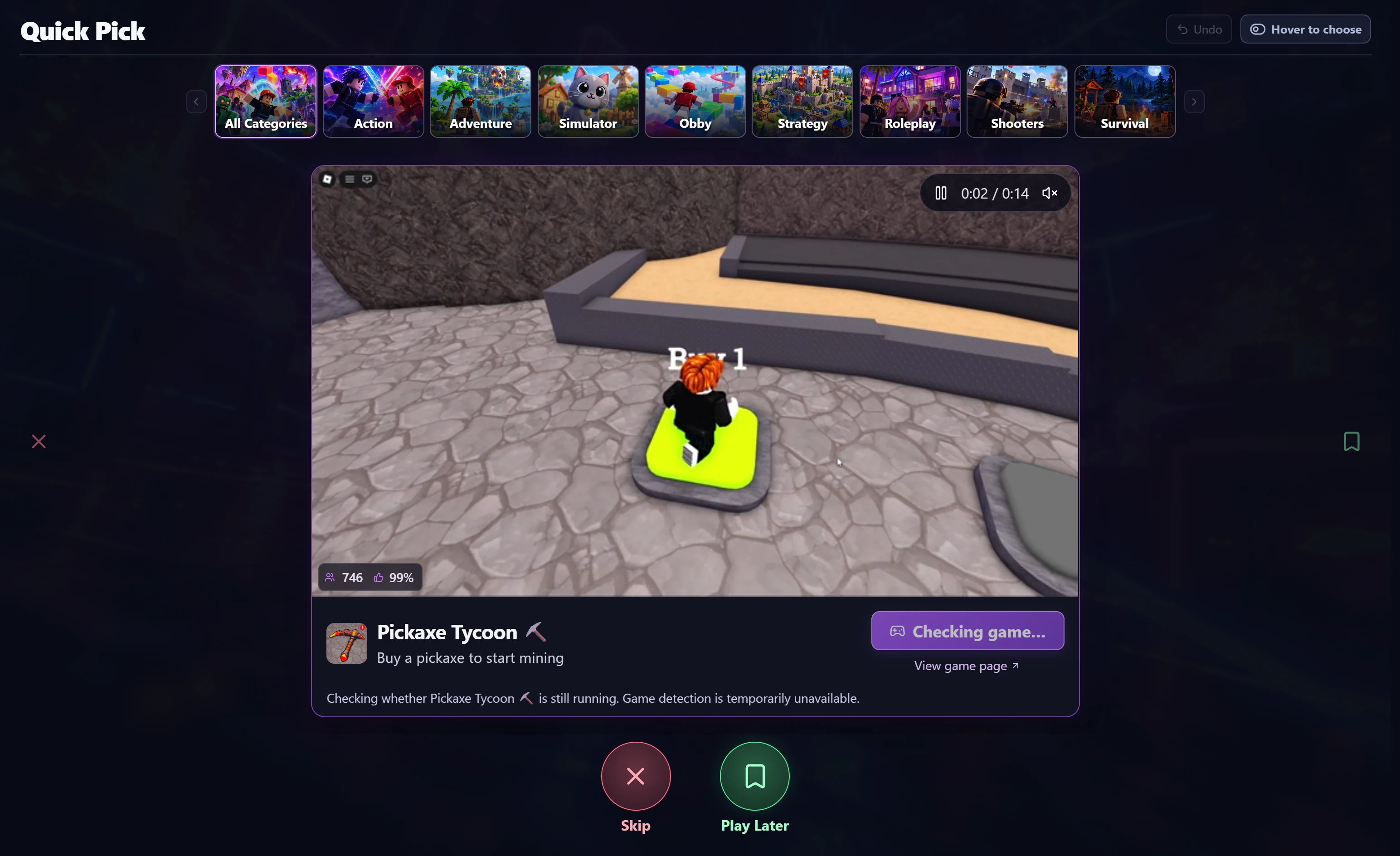
Verified stability: TopBlox isolates your gaming session from external browser hiccups, giving you a stable, responsive launcher on Windows 10 and 11.
Troubleshooting help