
PC playtime tracking guide
How to Track Hours Played on Roblox Games on PC
Learn how to track lifetime hours played on Roblox games using native 7-day Screen Time reports or automated permanent tracking with TopBlox on Windows PC.
To track hours played on Roblox, check your rolling 7-day Screen Time activity summary in account settings for recent oversight, or use an automated desktop tracker like TopBlox on Windows PC to log cumulative lifetime hours, session trends, and stats per game automatically. Compare all tracking options.
Roblox playtime tracking methods compared
Compare native tools against dedicated desktop companion logging:
| Tracking method | Data retention | Hours precision | Automation | In-game HUD |
|---|---|---|---|---|
| Roblox Screen Time | Rolling 7 days (resets weekly) | Rounded weekly total | Automatic cloud sync | No (settings menu only) |
| Manual stopwatch / Notes | Indefinite (requires manual entry) | Variable / player dependent | Manual start / stop | No |
| TopBlox Windows App | Permanent lifetime history | Precise minutes & hours | 100% automated process detection | Yes (via Desktop Overlay) |
Method 1: Check Roblox weekly Screen Time in account settings
Roblox provides an official built-in activity dashboard created primarily for account oversight and screen time awareness. It records the time your account spends inside experiences over a rolling 7-day window.
How to find your 7-day activity on Roblox:
- Sign into roblox.com on your computer or open the mobile application.
- Click the Gear icon (Settings) located in the top-right corner of the interface.
- Select Parental Controls or Screen Time / Activity from the settings menu.
- Examine the Weekly Activity Breakdown to review hours logged across your top experiences over the past week.
Data window limitation: Roblox Screen Time resets automatically on a weekly schedule. It does not maintain a historical lifetime log across months or years, nor does it provide Steam-like individual game cards showing your all-time hours.
Recommended PC stat tracking
Method 2: Automated lifetime playtime tracking with TopBlox
PC players seeking permanent, Steam-like stat tracking can run TopBlox for Windows. Built on Overwolf's verified gaming framework, TopBlox runs quietly in the background, automatically logging your gameplay durations without requiring manual timers or stopwatches.
How to track lifetime Roblox hours automatically:
- Install and launch TopBlox on Windows 10 or 11.
- Launch your favorite experiences through TopBlox or the regular Roblox launcher. TopBlox detects the running game process automatically.
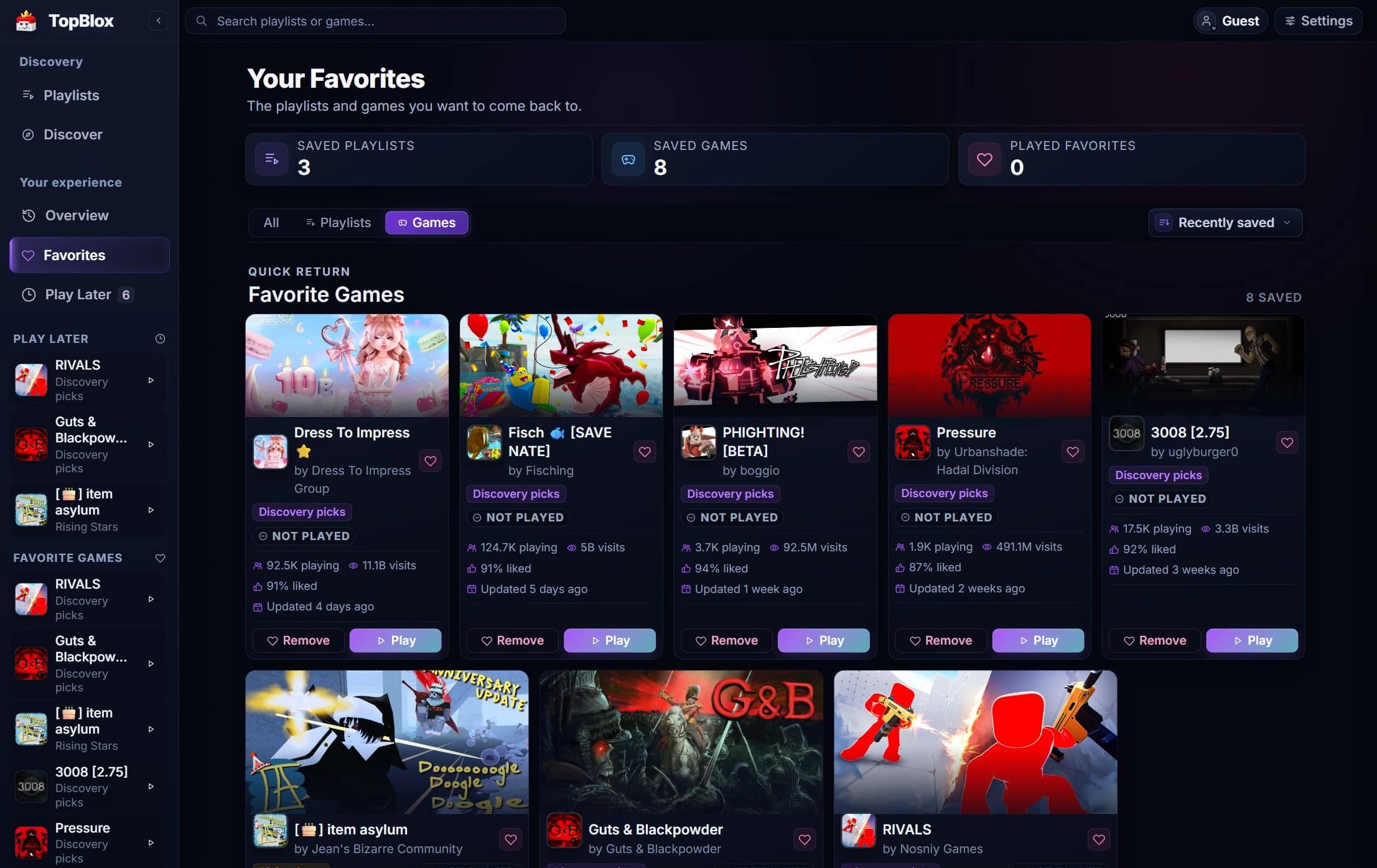
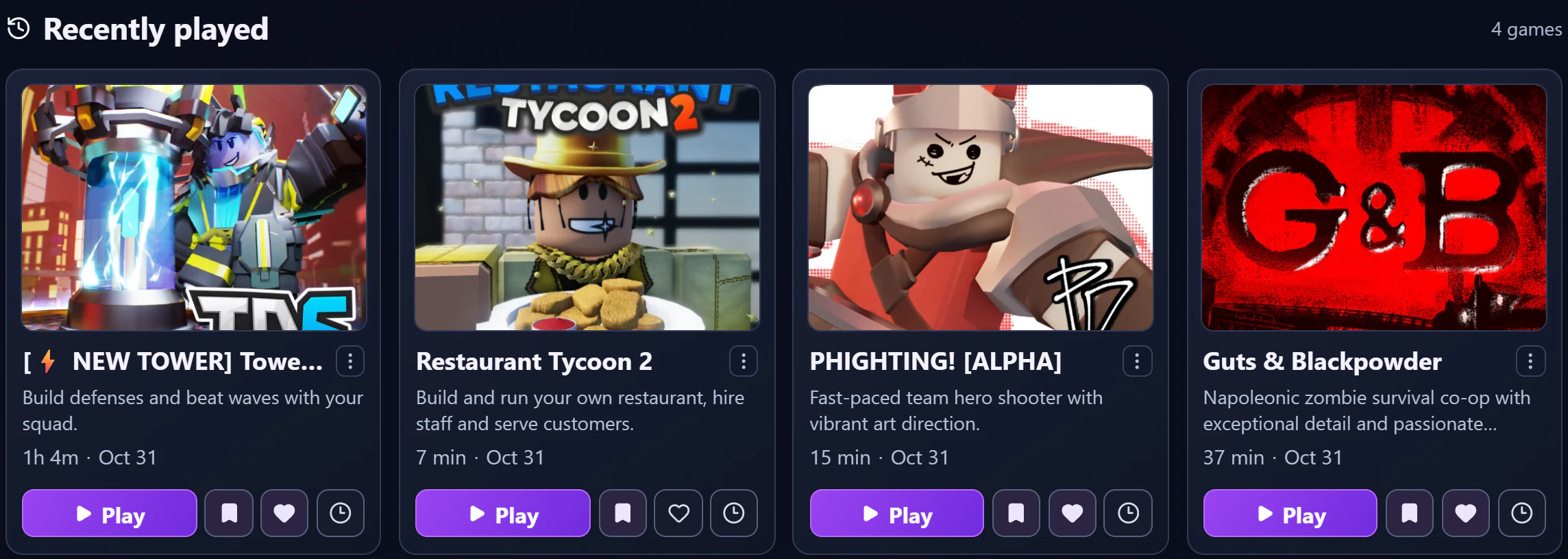
- Open your TopBlox library at any time to view your total hours played, recent sessions, and favorite games cleanly aggregated.
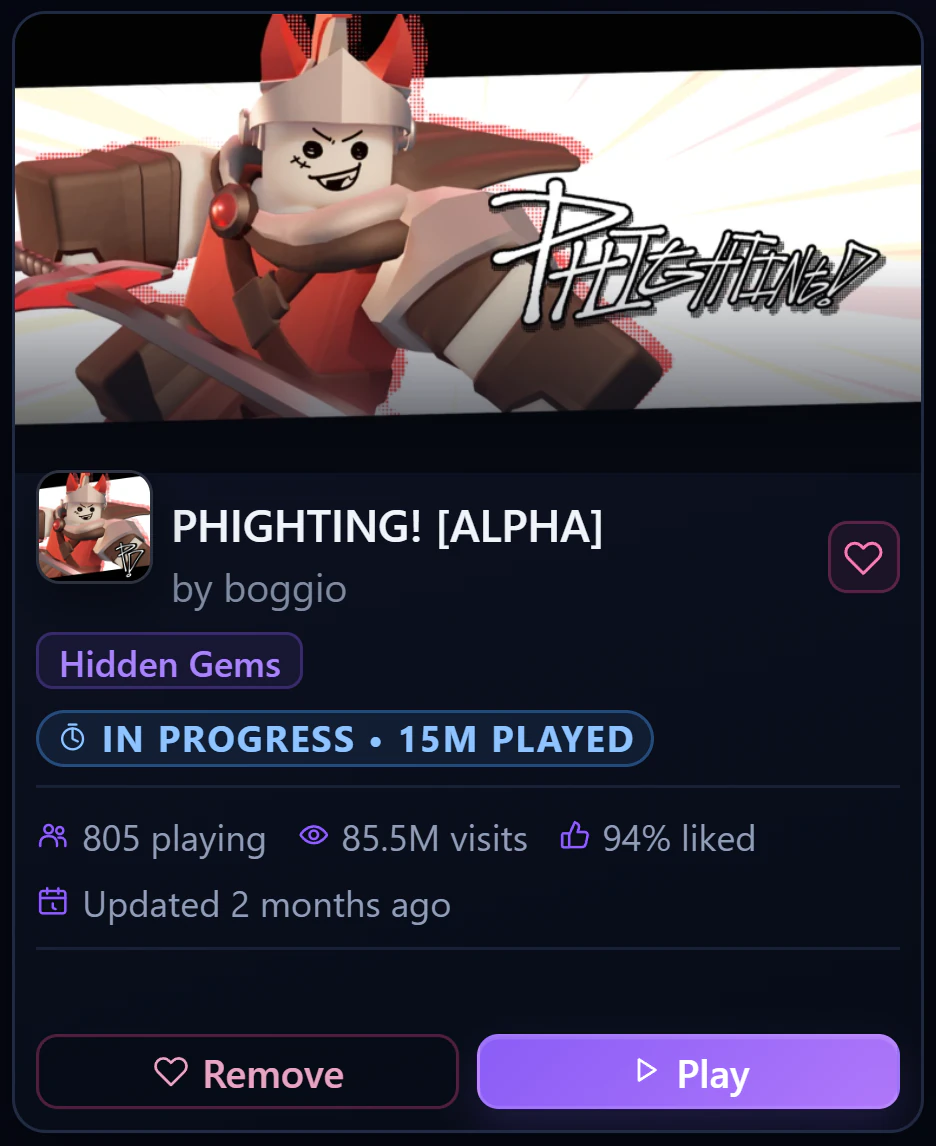
Verified permanence: TopBlox logs time locally and permanently on your PC. Your hours never reset at the end of the week, giving you an accurate record of your cumulative gaming milestones and grinding achievements.
Method 3: Live in-game session timer with Desktop Overlay
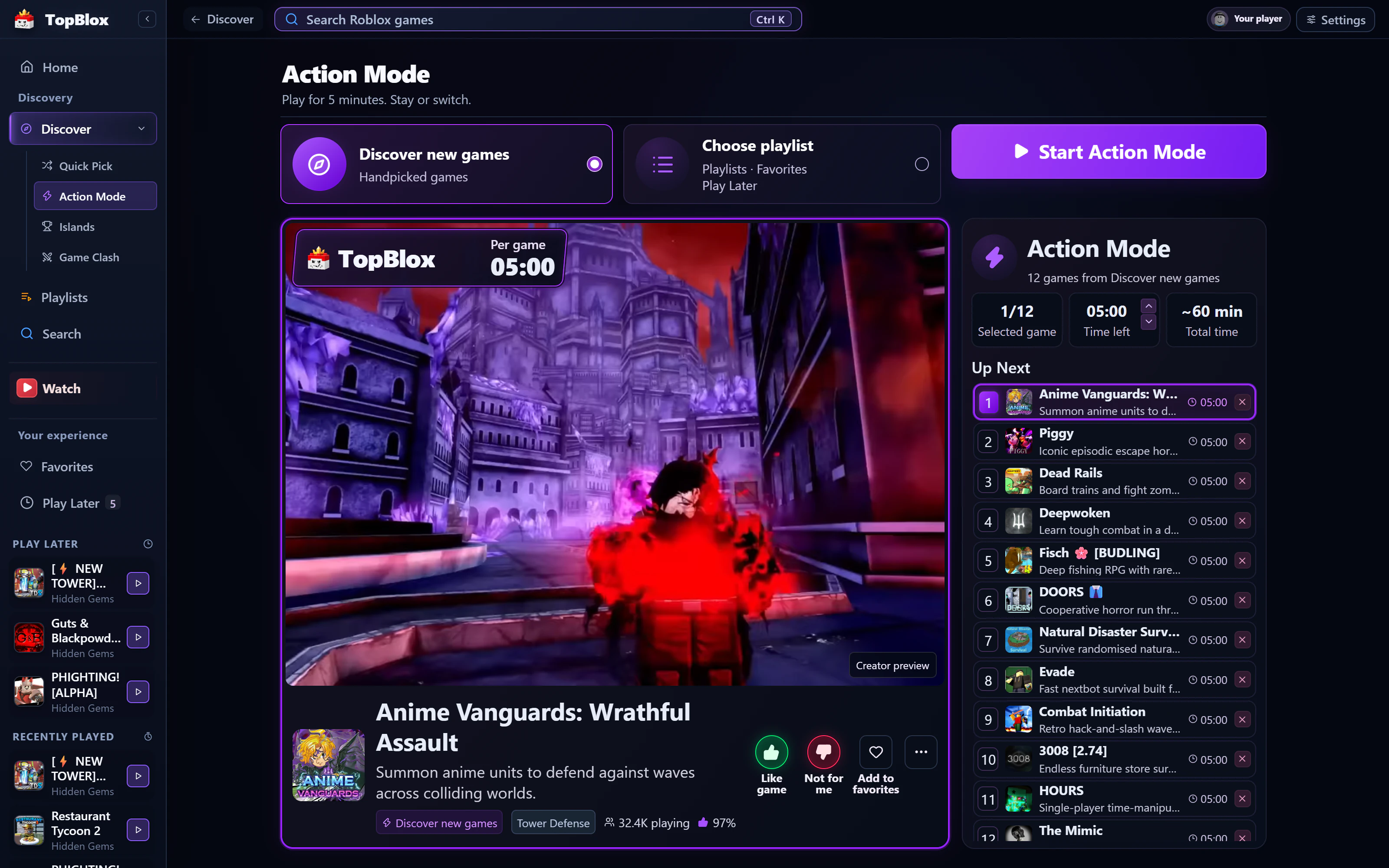
Want to know how long you have been grinding in a boss raid or obby without minimizing Roblox? TopBlox features an integrated In-Game Desktop Overlay that renders unobtrusively over your game window.
- Live Session Stopwatch: See elapsed session minutes in real time in the corner of your screen.
- TOS-Compliant Rendering: Uses Overwolf's hardware-accelerated DirectX overlay layer, requiring zero game memory hooks.
- Instant Library Access: Press your hotkey to browse your saved Favorites or switch experiences without Alt-Tabbing to a browser.
Playtime help