
PC PERFORMANCE TUTORIAL
How to Uncap Roblox FPS on PC (2026): Safe 144Hz & 240Hz Guide
Step-by-step tutorial on uncapping Roblox framerate on Windows PC. How to enable 144Hz and 240Hz refresh rates safely with Byfron anti-cheat compatibility and zero input lag.
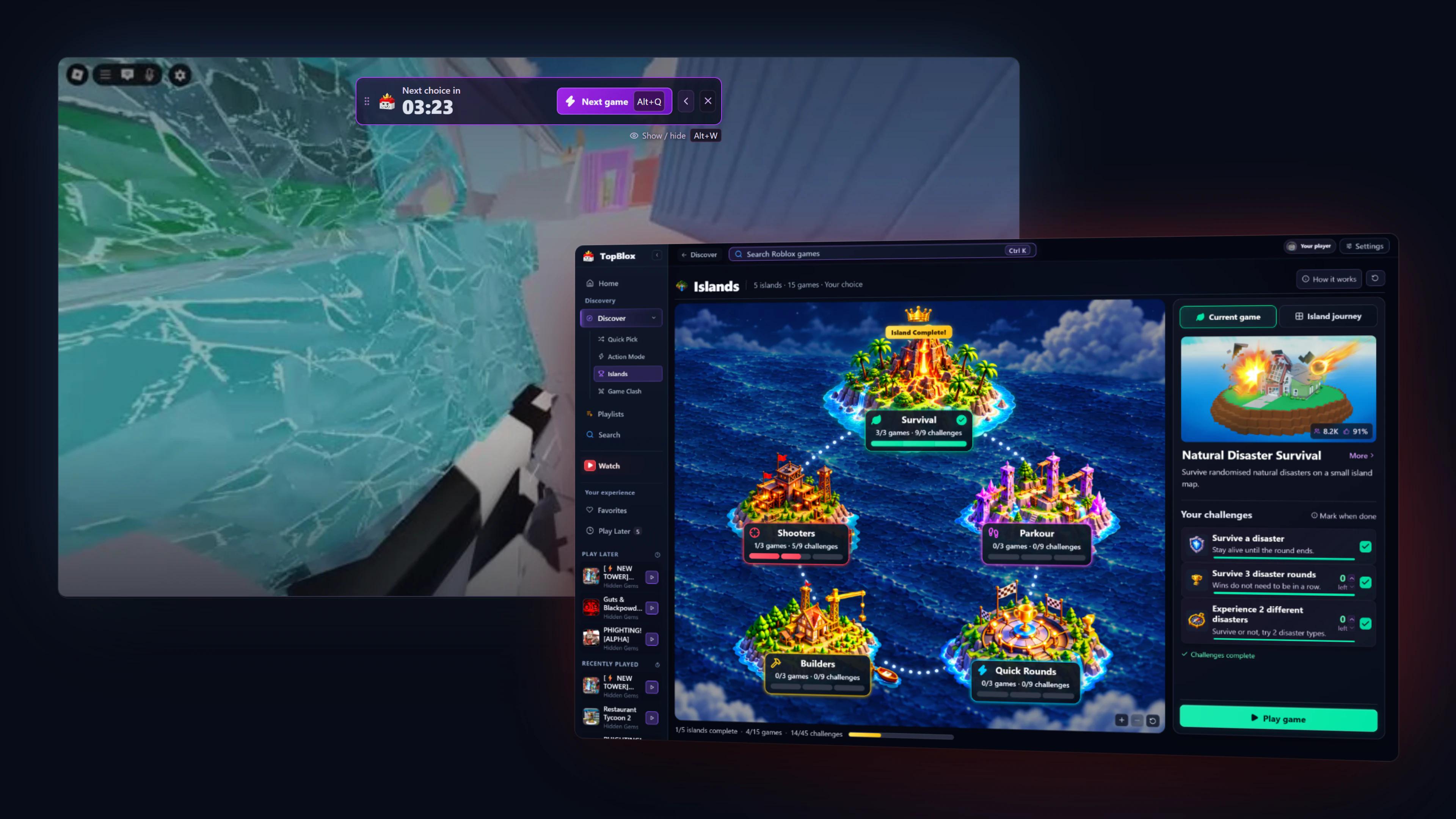
Fast Answer (BLUF): To safely uncap Roblox framerate beyond 60 FPS on Windows in 2026, verify your monitor is set to 144Hz+ in Windows Display Settings, enable G-Sync or FreeSync in your GPU driver, and configure a trusted, Byfron-compliant frame limit. Launching Roblox directly through an optimized companion like TopBlox eliminates background browser stutter and maintains smooth frametime pacing.
Why 60 FPS Feels Choppy on Modern PC Displays
If you have a 144Hz, 165Hz, or 240Hz gaming monitor, playing a game locked at 60 FPS creates visible micro-stutter and duplicate frame pacing.
When a 60 FPS signal is rendered on a 144Hz monitor, the display must repeat individual frames unevenly (known as 3:2 pull-down jitter). Uncapping the game to match your monitor’s refresh rate eliminates motion blur, sharpens camera rotation in fast shooters like Rivals, and provides near-instant mouse click responsiveness.
STEP-BY-STEP SETUP
How to Configure High-Refresh Rate Gaming on PC
| Step # | Action | Where to Configure | Optimal Setting |
|---|---|---|---|
| Step 1 | Windows Display Hz | Settings > System > Display > Advanced | Set to 144Hz, 165Hz, or 240Hz |
| Step 2 | GPU Driver V-Sync | NVIDIA Control Panel / AMD Adrenalin | Set V-Sync to “Fast” or “G-Sync Compatible” |
| Step 3 | Roblox Graphics Mode | In-Game ESC Menu > Settings | Switch from “Automatic” to “Manual” (Slider 6-8) |
| Step 4 | Background Browser Cleanup | Windows Task Manager | Close memory-heavy Chrome/Edge tabs before playing |
ANTI-CHEAT COMPLIANCE
Understanding Byfron (Hyperion) Compatibility
In 2023, Roblox deployed the 64-bit Byfron (Hyperion) anti-tamper solution on Windows. Older, invasive FPS unlockers that injected code directly into executable memory addresses will trigger crash errors (such as Error 268) or prevent the game from booting.
Always use non-invasive configuration methods or verified desktop launchers that comply with Roblox's client integrity checks. Never download unverified executable files from anonymous Discord servers or YouTube description links claiming to offer "hacked FPS boosters".
Frequently Asked Questions
Useful answers