
Roblox recovery guide
How to Find a Roblox Game You Forgot the Name of
Learn how to find a lost Roblox game using your badge history, Robux transaction records, browser history, or an automated desktop library.
To find a forgotten Roblox game, inspect your account Badges for earned milestones, check your Robux transaction history for in-game purchases, or search your browser history for roblox.com/games/ links. To prevent losing experiences in the future, keep a permanent desktop library with TopBlox on Windows PC.
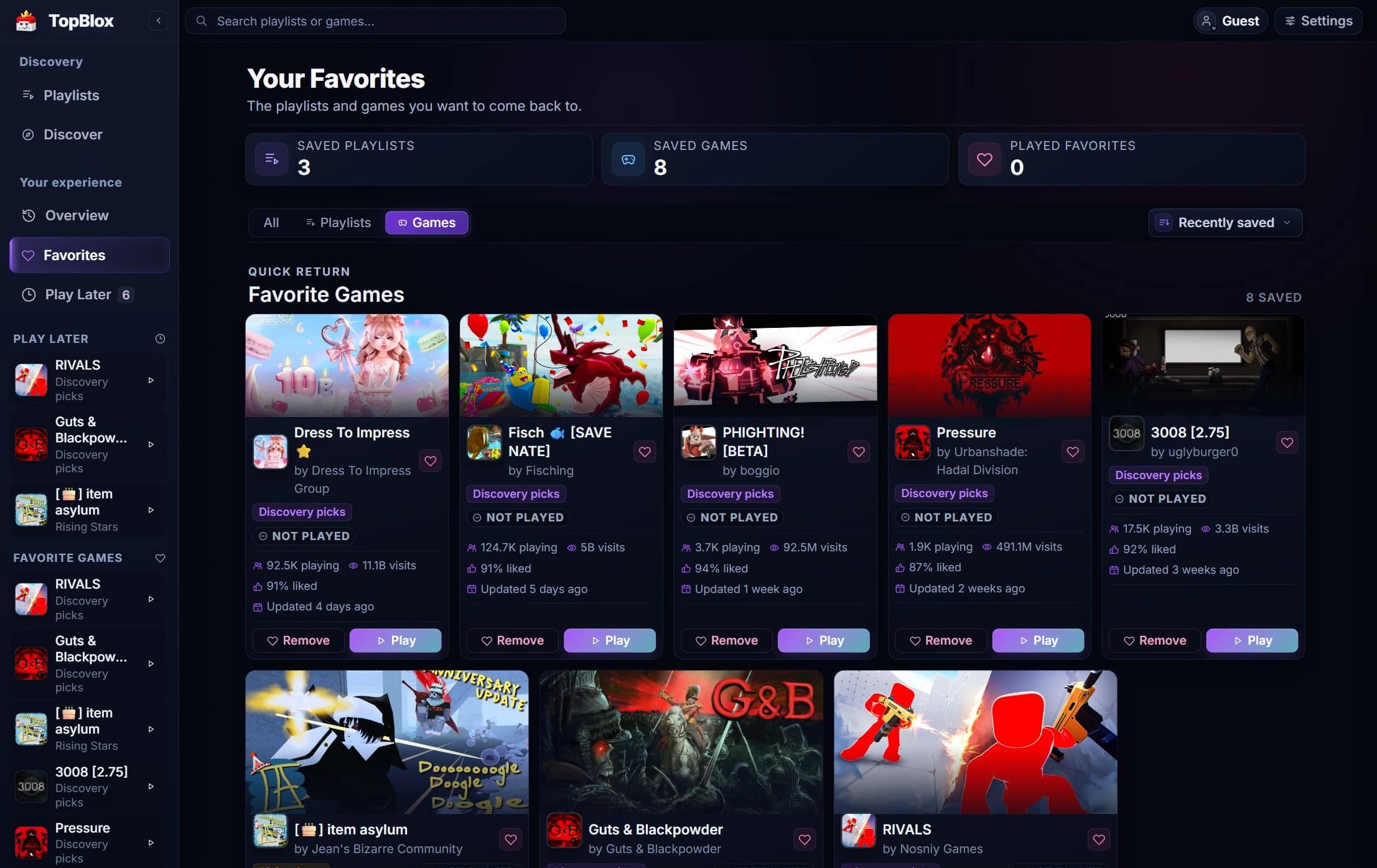
Option 1: Trace the game through Roblox Badges and transaction logs
Roblox does not offer an infinite browsing history, but your account records permanent digital footprints whenever you earn an achievement or spend Robux. If you participated in gameplay milestones, you can trace the exact game URL back through your profile.
Step 1: Inspect earned Badges in your profile
Most experiences award a badge upon first joining, completing a starter quest, or surviving a specific round.
- Open roblox.com on your computer or mobile device and sign in.
- Navigate to your Profile page and scroll down to the Badges inventory.
- Click through your historical badges. Each badge lists the associated experience name and links straight to its place page.
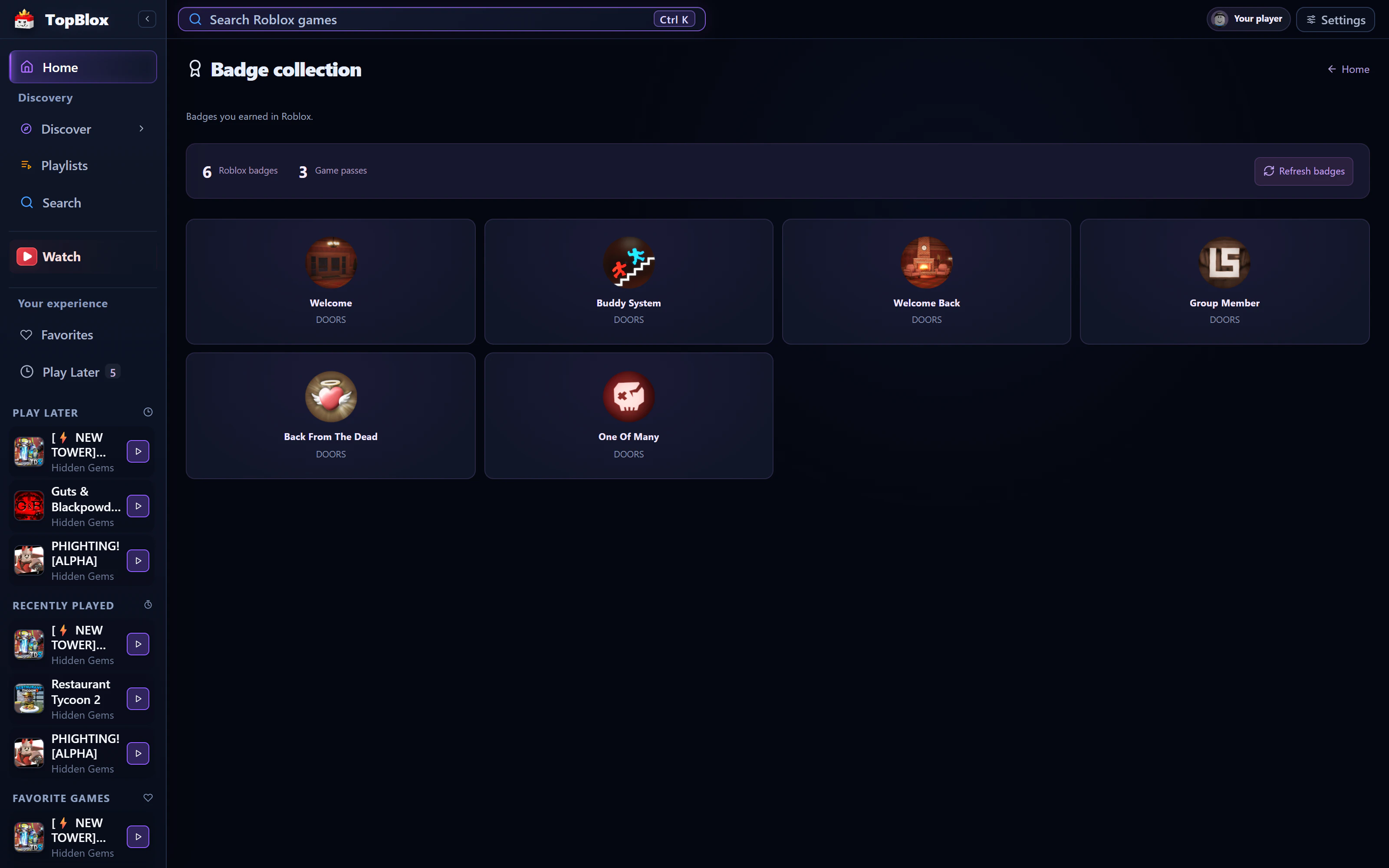
Step 2: Check Robux transaction records
If you bought a gamepass, private server pass, or in-game cosmetic, the charge is recorded permanently in your financial log.
- Click your Robux balance icon in the top navigation bar and choose My Transactions.
- Set the transaction filter dropdown to Purchases.
- Review the item titles and dates; clicking an item reveals the parent experience where it was created.
Step 3: Search browser history for game links
If you play on PC using a web browser to launch games, your local browser cache stores every visited URL:
- Press Ctrl + H in Chrome, Edge, or Firefox to open History.
- Type
roblox.com/games/into the search box. - Browser history retains the place ID and title in the URL slug, letting you jump back into experiences you visited months ago.
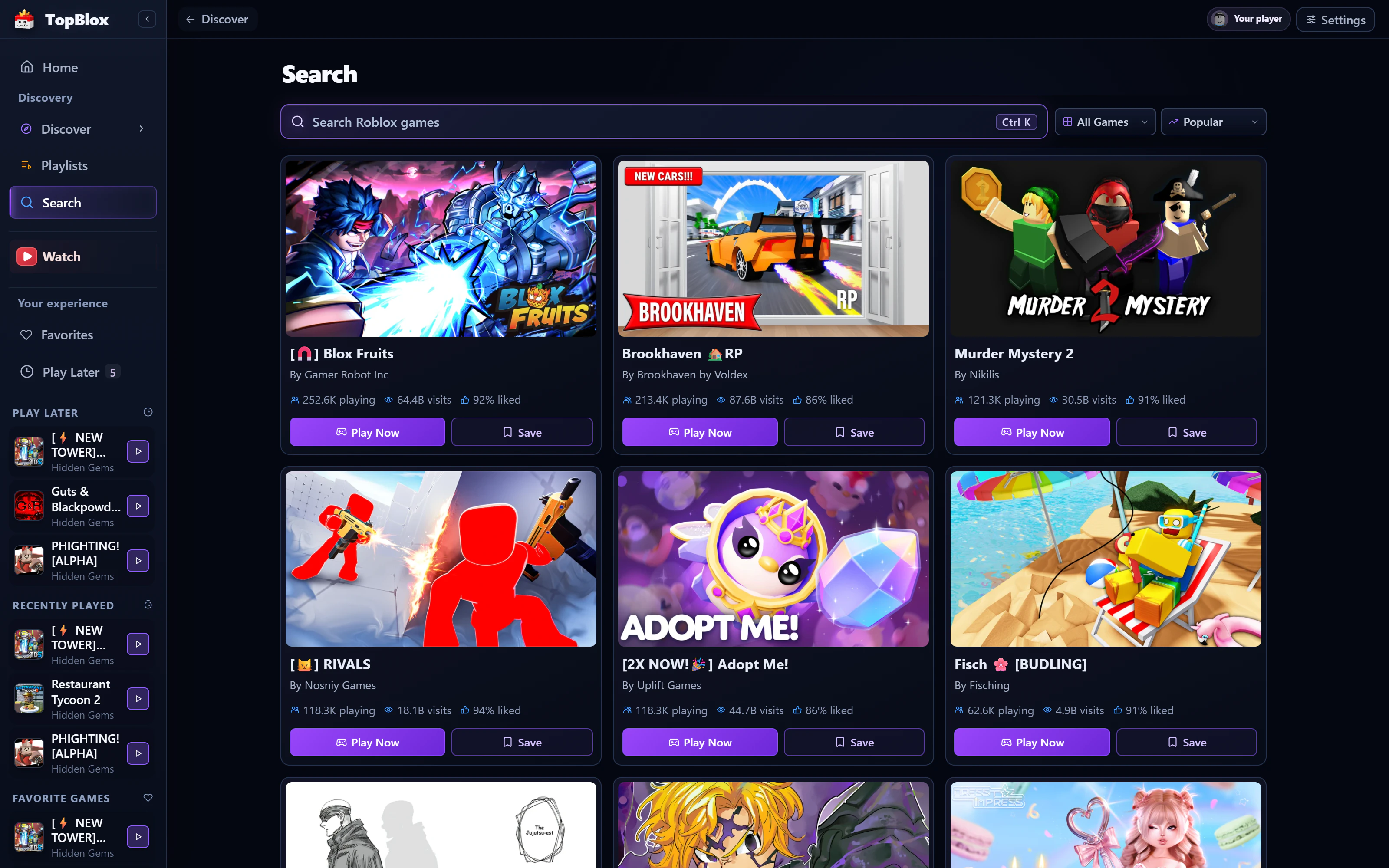
Prerequisite and limitation: These recovery steps require that you were logged into your account and either unlocked a badge, completed a purchase, or kept your browser history intact. If you played without triggering an account event and cleared your cache, unrecorded historical sessions cannot be recovered from Roblox servers.
Recommended preventative workflow
Option 2: Save games to a permanent desktop library with TopBlox
Rather than relying on memory or searching through hundreds of badges after a game disappears, PC players can run TopBlox for Windows. Distributed through Overwolf, TopBlox provides a dedicated desktop companion that logs your gaming sessions and keeps your favorite experiences organized in one place.
How to preserve games in your TopBlox library:
- Open TopBlox on Windows and browse games, playlists, or your active sessions.
- Click the Heart icon to add a game to Favorites, or bookmark it into Play Later with one click.
- Launch experiences directly via Play Now. TopBlox stores your session history locally on your computer, so games remain accessible even when they drop off Roblox's Continue Playing carousel.
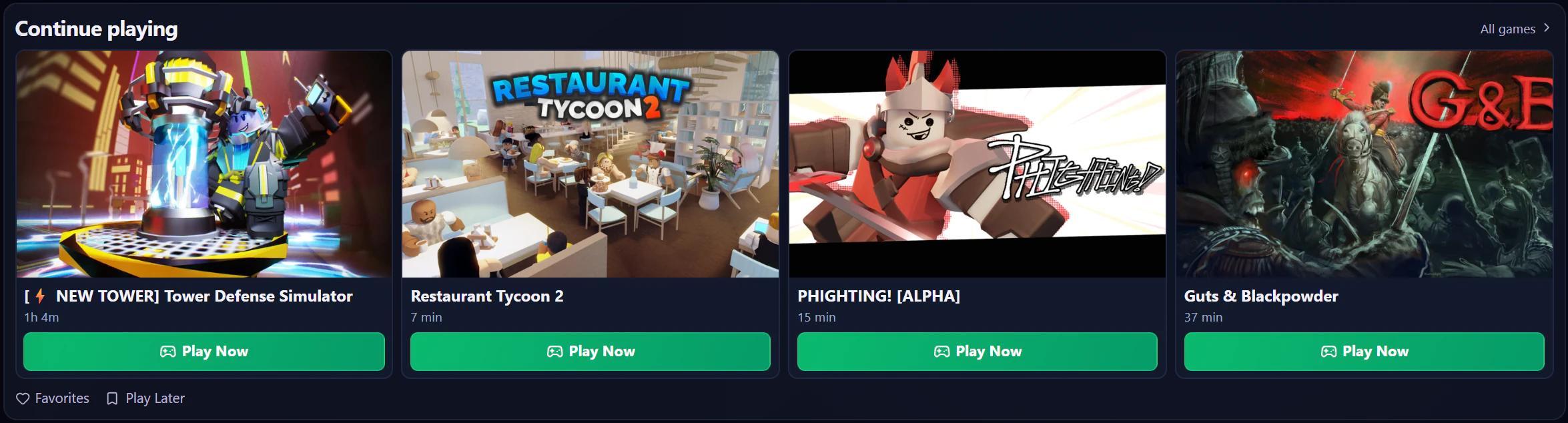
Verified convenience: TopBlox stores your saved library on your PC without time limits or weekly resets. You can jump into any saved game with 1 click without opening browser tabs or searching through past transactions.
Recovery help